Technical expert instructions
Your task is to verify whether AI evaluated the candidate's answers correctly, correct the grades when necessary, and leave clear technical comments.
The workflow consists of four steps:
- Open a completed interview.
- Review the answers and grades.
- Set the final result.
- Submit the review.
If you are also responsible for the quality of questions and evaluation criteria, maintain the assessment context of the knowledge matrix and its individual questions.
Step 1. Open the interview
- Sign in and open Overview.
- Find the required interview with the Completed status.
- Open the interview results.
- Select Start review.
If you have already opened this review, select Continue review. Your previous changes are saved automatically.
If the button is missing, make sure that the interview is completed and configured for expert review. If both conditions are met, contact your administrator.

Check the interview tags
Tags appear at the top of the results and indicate what may require attention during the review. Hover over a tag to see its comment, author, and date.
| Tag | What to check |
|---|---|
| Requires review | The interview is waiting for expert review. This tag is removed automatically after the review is successfully submitted. |
| Disputed score | Carefully compare the candidate's answer, AI grade, and AI feedback. Record your decision in the reviewer grade and comment. |
| Technical problem | Consider possible audio, video, or recording problems when evaluating the answer. |
| Invalid question | Check the wording and expected answer. Do not lower the grade solely because the question itself is flawed. |
| Cheating | Review the available cheating indicators and interview data before reaching a conclusion. |
| Reference | The interview is marked as an example for future use. |
| Demo | The interview belongs to a demonstration scenario. |
A technical expert can add and manage tags on completed interviews owned by their organization:
- Select Add tag.
- Choose a tag and optionally add a comment of up to 200 characters.
- Select Save.
To edit the comment or remove a tag, select the existing tag. Tags help organize the review process but do not replace reviewer grades and comments.
You can filter interviews by tag in Overview: open the filters panel and select one or more values in Interview tags. For example, this lets you quickly find all interviews marked Requires review and build a review queue.
Step 2. Review every answer
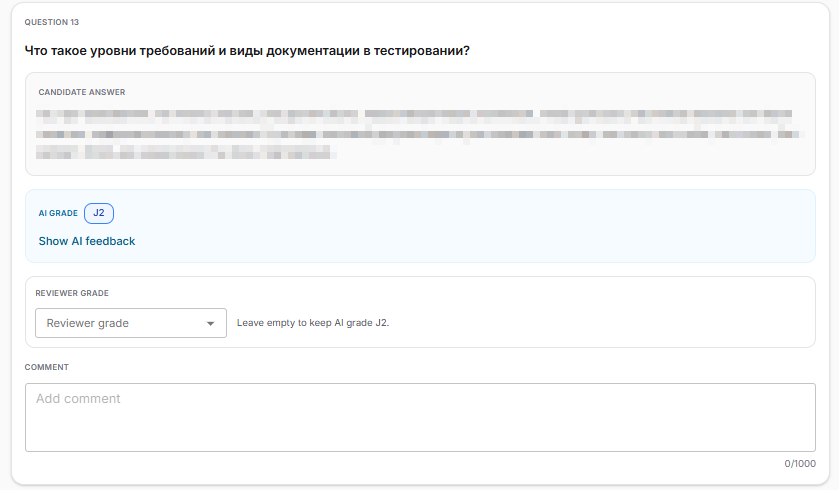
For each question, check the following:
- Question — what the candidate was asked.
- Candidate answer — whether the answer is complete and technically correct.
- AI grade — whether it matches the quality of the answer.
- AI feedback — select Show AI feedback to read the reasoning behind the grade.
Then choose one of the following options.
If you agree with AI
- Do not change the grade.
- You may leave the comment empty.
- If the answer reveals something important for future evaluations, add a short technical comment.
If you disagree with AI
- Select the correct grade in Reviewer grade.
- Explain why the grade was changed in Comment.
How to write a useful comment
Write about the candidate's knowledge and answer, not about the candidate as a person.
A good comment explains:
- what was correct or missing in the answer;
- which technical criterion affected the grade;
- why the grade should be higher or lower.
Good comment:
The grade was lowered to Intermediate: the candidate correctly explained the purpose of an index but could not explain how selectivity and the execution plan affect index selection.
Insufficient comment:
The answer was weak. I did not like the candidate.
Do not include:
- personal impressions of the candidate;
- personal data;
- notes about connection quality, rescheduling, or other organizational matters;
- general statements without a technical explanation;
- the same idea repeated in different words.
Limits:
- a question comment may contain up to 1,000 characters;
- the overall interview comment may contain up to 2,000 characters.
Step 3. Set the final result
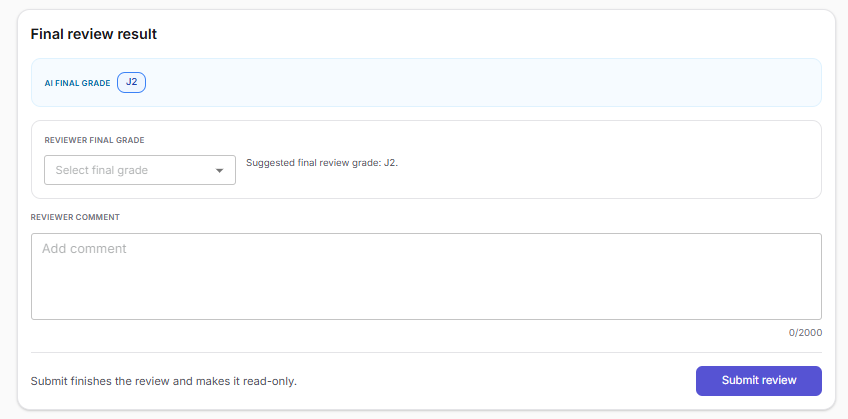
After reviewing all questions, go to Final review result.
- Compare the final AI grade with the results of your review.
- If you changed at least one question grade, select the Reviewer final grade.
- Add an overall interview comment when necessary.
Use the overall comment for conclusions that apply to the entire interview or the specialist's overall evaluation. Leave feedback about a specific answer next to its question.
The system suggests a final grade based on the question grades. Review the suggestion and make your own expert decision.
Step 4. Submit the review
Before submitting, make sure that:
- every question has been reviewed;
- changed grades have clear explanations;
- a final grade is selected if question grades were changed;
- comments contain no personal or organizational data.
Select Submit review and confirm the action.
Important: grades and comments cannot be changed after submission. If you are not ready to submit the review, simply leave the page. Your draft is saved automatically.
You may submit the review without making any changes. This records that you checked the results and agreed with the AI evaluation.
What happens to comments afterward
After submission, the system checks the comments automatically. Useful technical conclusions are converted into concise criteria and added to the assessment context of the relevant question or knowledge matrix.
Duplicate, overly general, personal, and organizational notes are not added to the context. The complete review itself remains saved.
How to maintain evaluation criteria
Use this section if you are also responsible for the quality of the knowledge matrix and its questions.
General criteria for a specialization
Use matrix context for rules that apply to all interviews for the specialization.
- Open Knowledge matrices.
- Select and open a private matrix owned by your organization.
- Select Edit assessment context for AI interview evaluation.
- Add, edit, delete, or reorder the rules.
- Save the changes.

The screenshot shows the button location. A technical expert can edit assessment context only in a private matrix owned by their organization.
A matrix may contain up to 15 entries with a combined length of up to 2,000 characters.
Criteria for a specific question
Use question context when a rule applies only to the answer to that question.
- Open the required knowledge matrix.
- Go to the questions and tasks list.
- Open the required question for editing.
- Find Assessment context.
- Add, edit, delete, or reorder the rules.
- Select Save.
A question may contain up to 7 entries with a combined length of up to 1,000 characters.
Each context entry should contain one clear idea. For example:
At Senior level, the candidate should not only name the pattern but also explain its limitations and possible alternatives.
Matrix context and individual question context do not replace each other. If you change a question, always check whether its evaluation criteria are still relevant.